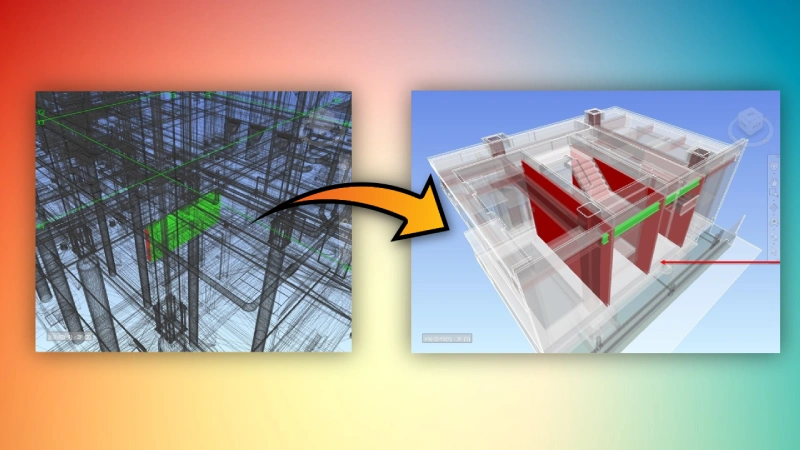
RV ClashBox generates section-boxed views from your clash tests, all to a presentable quality. Understand your clashes like never before with transparent context elements, custom section box sizes, and more!
Group Clashes by Room
Need to focus on clash resolution in a specific zone in the building? Let RV ClashBox group your clashes by the nearest room or space, so you can check the critical areas first.
Save Rooms to Viewpoints
Need to quickly check what’s inside one or several rooms? RV ClashBox makes it easy to clip the Navisworks view to show only your selected rooms. The app can also generate saved viewpoints for multiple rooms at once.
And that's just the beginning!
Allow Clash Review in Navisworks Freedom
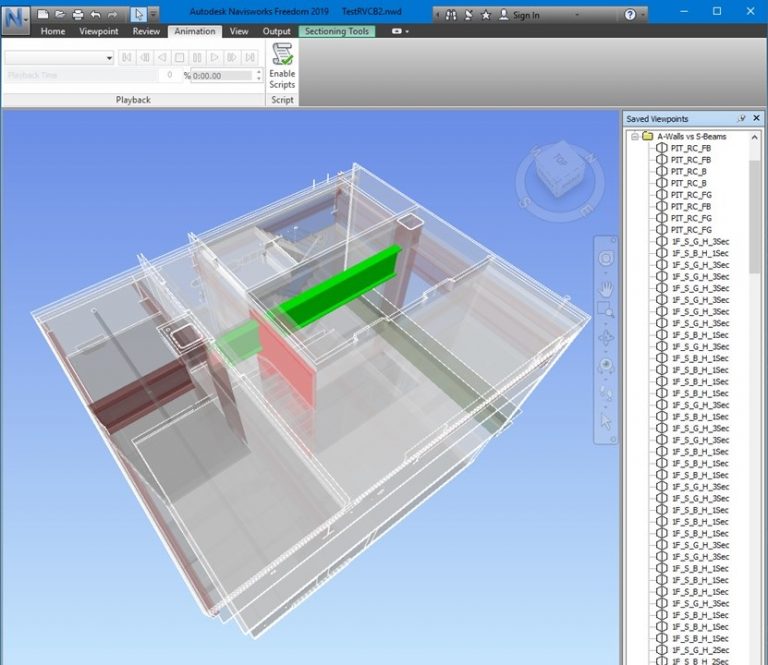
RV ClashBox helps extract clash information from the Clash Detective module, only available in Navisworks Manage, to the Saved Viewpoints area.
Your colleagues can now easily review these clashes even in the free Navisworks Freedom software!
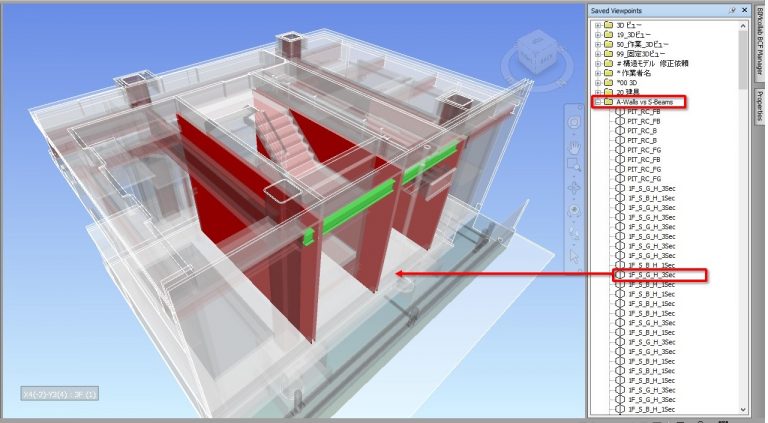
Once view generation is complete, open Navisworks’ Saved Viewpoints panel and you will see new views organised into folders named after your selected clash tests.
Each view will have clashing elements highlighted in the original red and green colors used in Clash Detective.
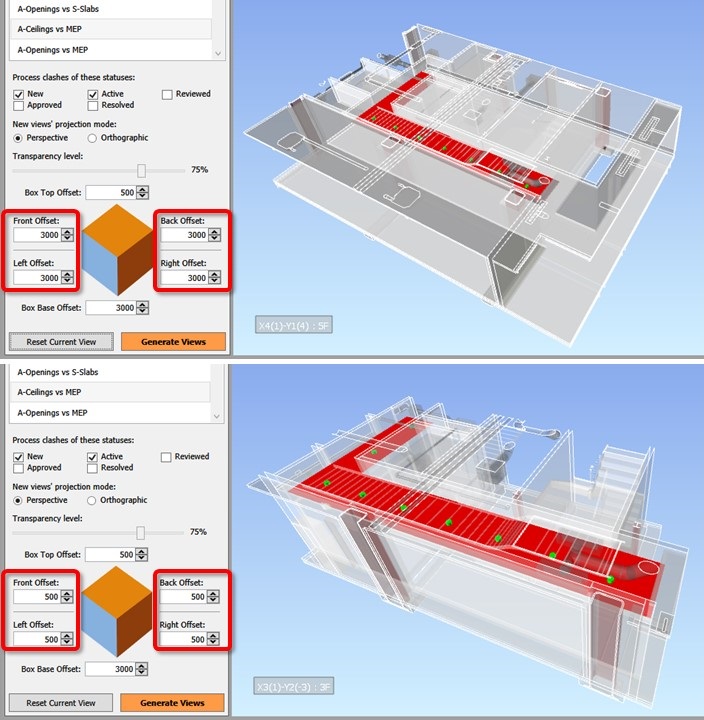
All context elements will show in your selected transparency ratio.
Generated view boxes are still Navisworks’ native elements. You can adjust and fine-tune their sizes and positions if necessary.
Similiarly, if you only want to make context elements more or less transparent, simply go to Navisworks’ “Item Tools” tab and change the percentage there.
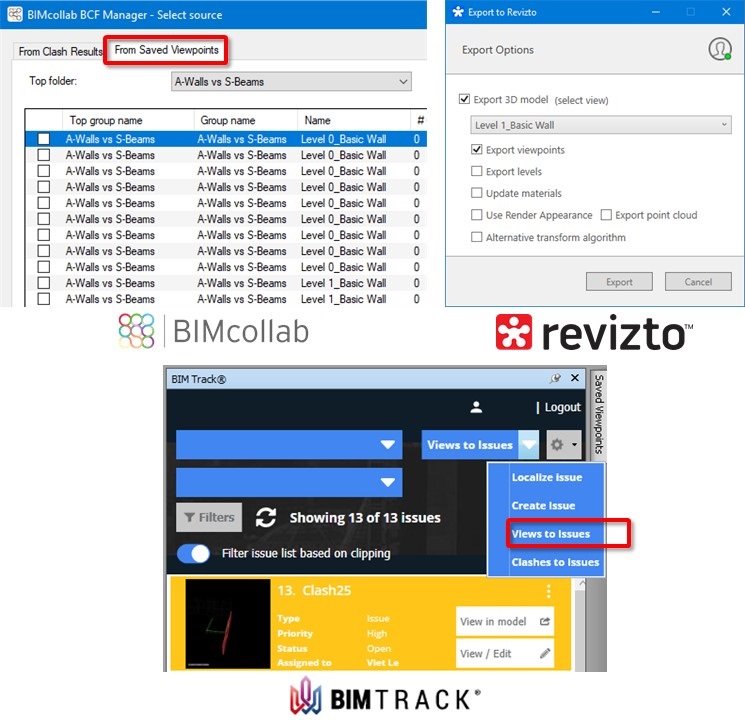
Most popular clash-tracking apps support batch-creating issues from saved viewpoints in Navisworks. For example, you can quickly turn 300 viewpoints generated by RV ClashBox into 300 issues on platforms like BIM Track, BIMcollab, Revizto and so on.
They will preserve the views’ section box and graphic overrides, and save that into the issues as screenshots. This will help your wider design team quickly understand clashes in context!
Generating viewpoints for your clashes has never been easier with RV ClashBox for Navisworks. Simply click the button below to begin saving some serious amount of time during model coordination tasks.