RV Help Center
-
CAD Files Explorer
-
RV BatchTransmit
-
RV CameraPlanner
- Quick Start
- Speed up camera obstruction detection
- Configure camera obstructions
- Obstruction check plane
- Vary filled region settings by camera type
- Create multiple filled regions per camera
- Customize filled region appearance
- Filled region's origin offset
- Rotate filled region around camera
- Transfer settings between models
-
RV ClashBox
-
RV DeepClean
-
RV FamilyPurge
-
RV Live Coordinates
-
RV RoomLink
- Quick Start Guide
- Settings Checklist
- Use Custom Filters
- Guess Directions
- Use location projection on level
- Elements without rooms assigned
- Combine contained elements' parameters
- Count containted elements
- Distribute numeric room/space values
- Schedule objects above ceilings
- Schedule doors & windows by linked rooms
- Copy element data to rooms/spaces
- Extend Room/Spaces to Bounds
- Using a Network License
-
RV ZoneMonitor
-
Licensing
< All Topics
Print
Check Shared Coordinates During Export
No matter how carefully the shared coordinates system was set up in all your Revit files, each model can get out of sync at any time. Remember when someone accidentally moved a Revit link and clicked Save? Even worst, this can happen just before you export the models for sharing with the wider project team!
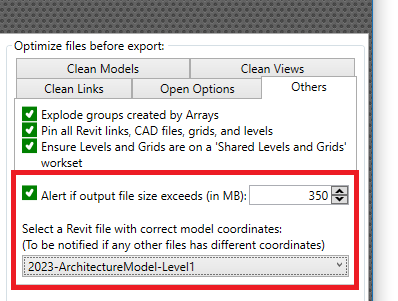
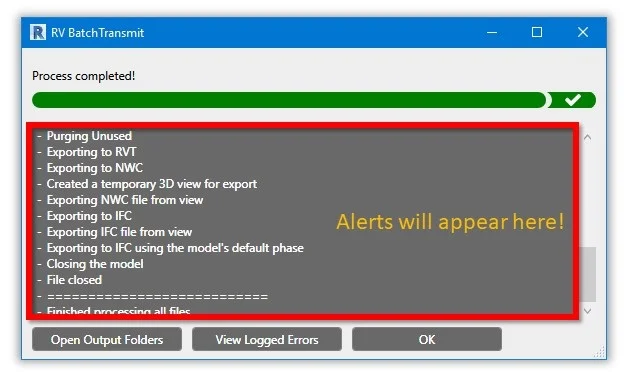
To prevent the embarrassment and abortive work, RV BatchTransmit lets you select one model in the batch as the coordinate “base”. During the export, the app will look out for any file that has a different coordinate system compared to the base one. It will then record this in the final report, so you know exactly which file to edit and re-export.
Contents