RV Help Center
-
CAD Files Explorer
-
RV BatchTransmit
-
RV CameraPlanner
- Quick Start
- Speed up camera obstruction detection
- Configure camera obstructions
- Obstruction check plane
- Vary filled region settings by camera type
- Create multiple filled regions per camera
- Customize filled region appearance
- Filled region's origin offset
- Rotate filled region around camera
- Transfer settings between models
-
RV ClashBox
-
RV DeepClean
-
RV FamilyPurge
-
RV Live Coordinates
-
RV RoomLink
- Quick Start Guide
- Settings Checklist
- Use Custom Filters
- Guess Directions
- Use location projection on level
- Elements without rooms assigned
- Combine contained elements' parameters
- Count containted elements
- Distribute numeric room/space values
- Schedule objects above ceilings
- Schedule doors & windows by linked rooms
- Copy element data to rooms/spaces
- Extend Room/Spaces to Bounds
- Using a Network License
-
RV ZoneMonitor
-
Licensing
< All Topics
Print
Single Licenses
Using Revit alone does not consume a plugin license. A Single license is only checked out the first time you launch the plugin within a Revit session, provided a license is available.
To release a Single license, simply close the Revit session in which the license has been checked out.
If you change to another computer, you can move the Single to your new device. Note that once moved, the license will no longer work on the old computer and will show the message below.
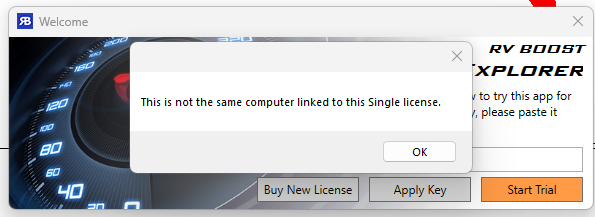
To move a license this way:
- Close all Revit sessions on your old computer to ensure the license has been released.
- Open Revit on the new computer
- Run our app on the new computer
- In the Activation window that will appear, type or paste in your license key
- Click the “Move License” button
- If the license key is correct, you will see a “License moved successfully” message, and the plugin will open.
Contents