Configure camera obstructions
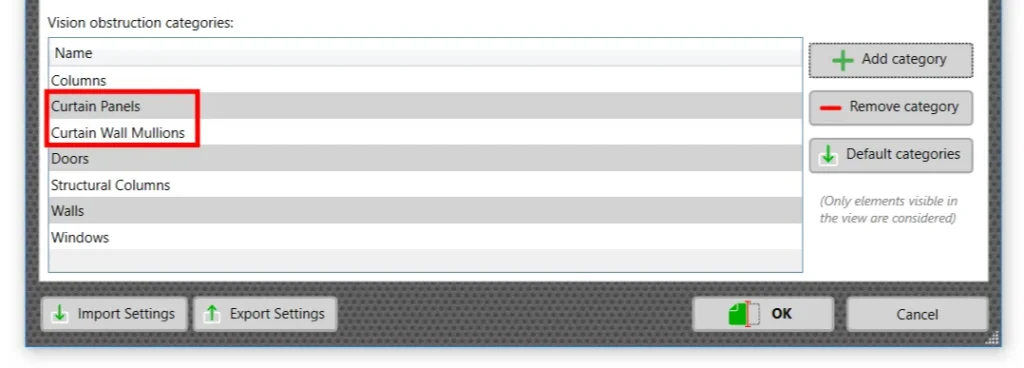
For RV CameraPlanner to draw camera filled regions correctly, it needs to know which Revit categories to consider as obstructions to the camera’s field of view. You can find the default list here:

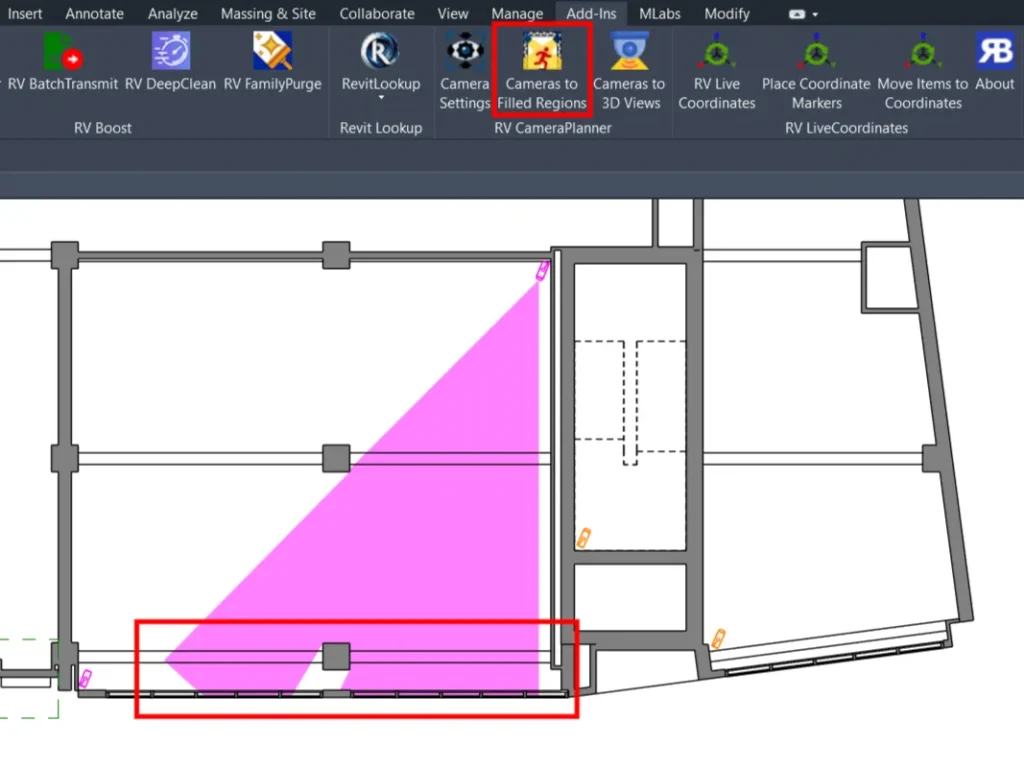
Sometimes those aren’t enough, for example when we have a CCTV camera pointing at a Revit curtain wall, the app will generate a filled region like this:

If you don’t consider elements outside the curtain wall as visible to the camera, you can add the Curtain Wall Panels to the list of obstruction categories. Simply click the Add Category button and find it there:

We recommend adding the Curtain Wall Mullions category as well, since there’s a chance the camera is at the same elevation as a mullion so will hit that instead.
With the new categories addedd, simply rerun the app to get the correct filled region boundaries:
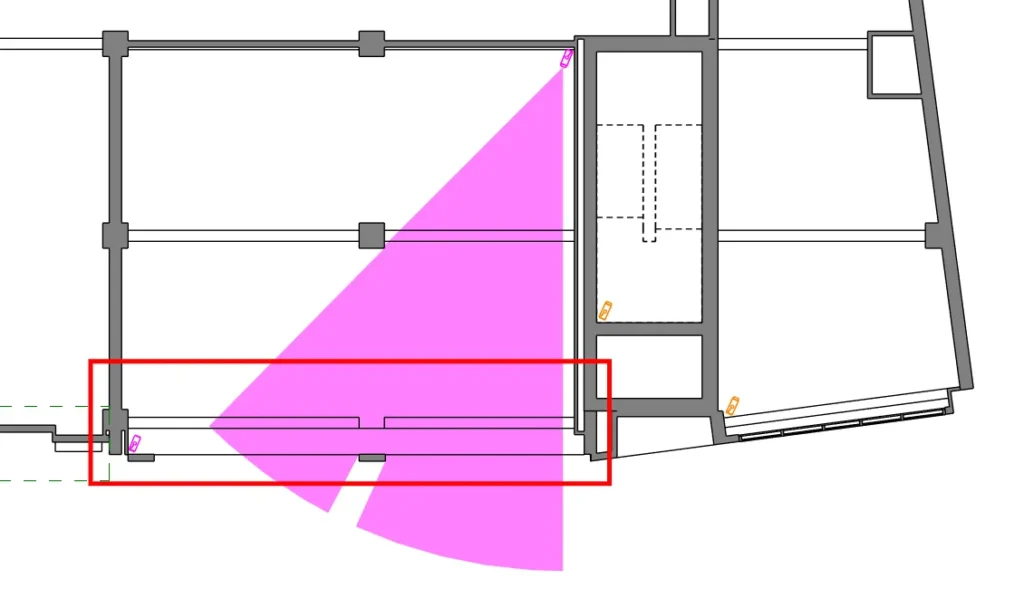
Note that the app only considers obstructions of the selected categories that are visible in the view. If we keep the same settings but hide the curtain walls and the nearby column, the result will be like this instead:
Next step:
Now that you have selected the required camera obstruction categories, make sure to also:
- Specify the right plane for obstruction geometry detection
- Follow pro tips how speed up obstruction geometry detection in large Revit models
Click each of the article links above to find out more.