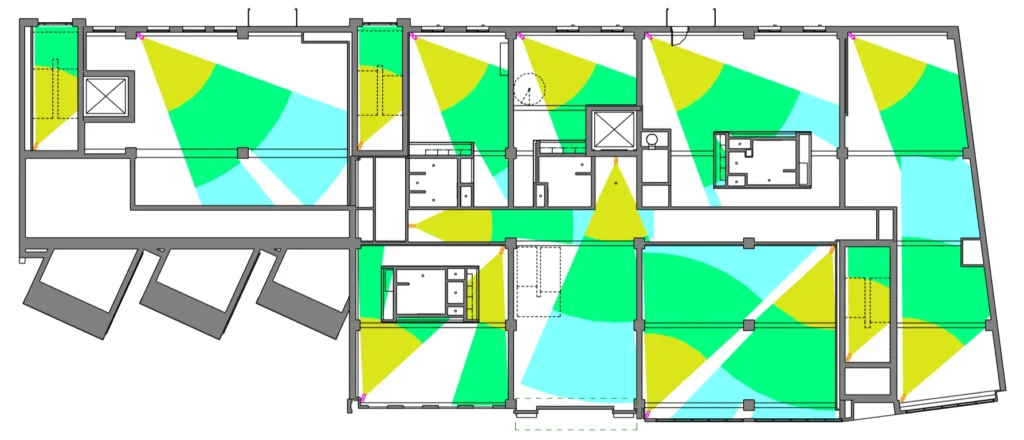
Create multiple filled regions per camera
The max view distance of your CCTV camera may vary depending on several factors. This sometimes require drawing multiple filled region for a single camera to visualize its near, medium and far limits. As always, RV CameraPlanner has this covered!
To start, select a card and click the “Add Region Type” button twice. This will create two additional rows below the default one. You can set different filled region types, view distances and vision angles for each row:
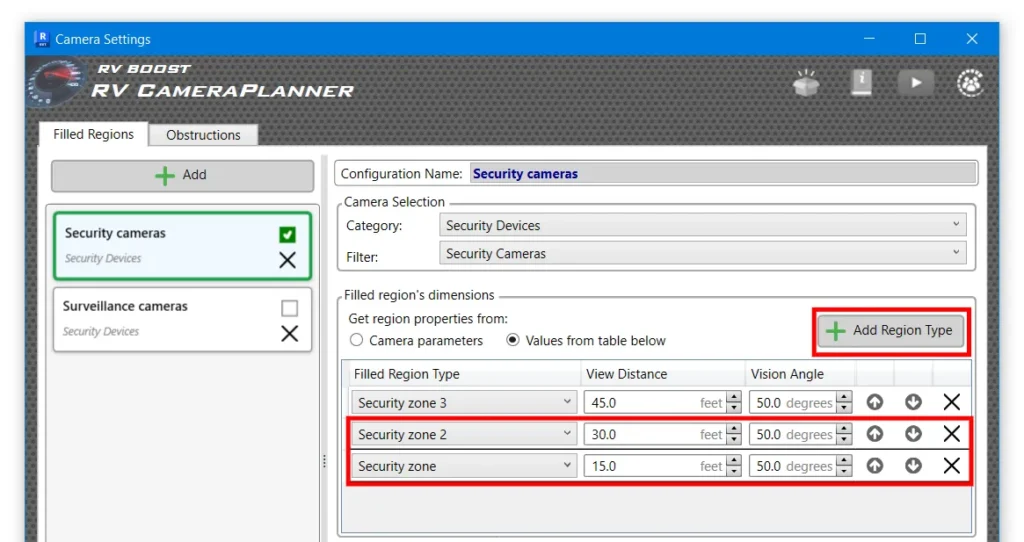
On the right of each row are buttons for deleting, moving up, or moving down the row. Row order here is important because the app will create filled regions for upper rows before lower ones. In this example, we configure far limit using the top row and near limit using the bottom row. This ensures that the smaller filled regions will be placed on top of larger ones:
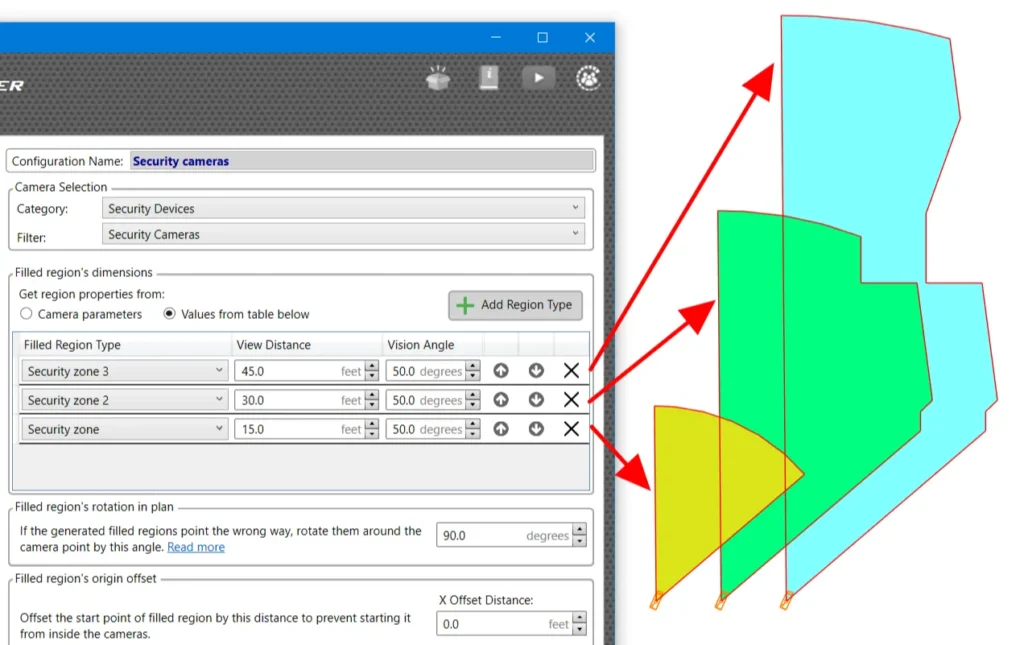
The example above uses view distances and vision angles from settings, but you can also use values from camera parameters if preferred. Simply use the same “Add Region Type” button to add more rows and select the required parameters for each row:
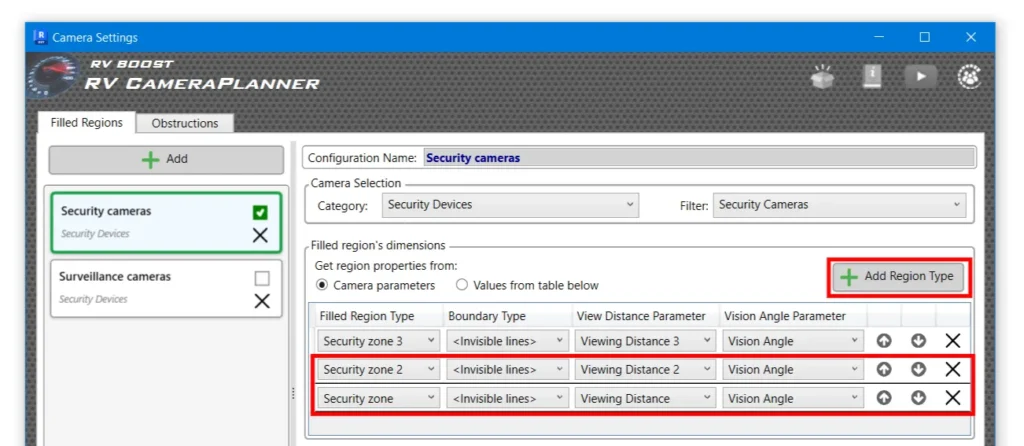
Make sure the parameters you want to select are of the correct type:
- Length for view distance parameters
- Angle for vision angle parameters
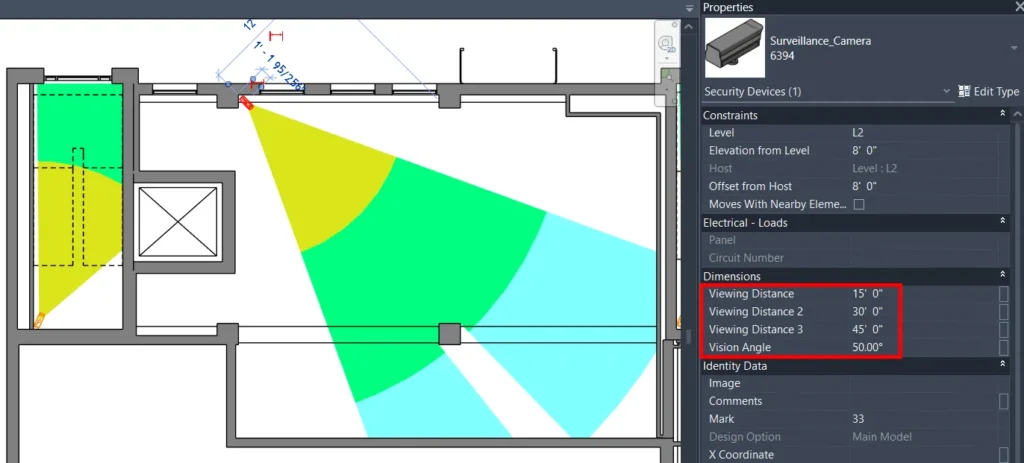
With all that set up, RV CameraPlanner can generate all your CCTV filled regions in one go!