Speed up camera obstruction detection
Configuring obstructions to your CCTV cameras is a balancing act:
- If not enough, the filled regions generated will appear incorrect
- If too much, the generation process will take a long time to finish, especially in big Revit models
The checklist below will help us strike a balance.
1 – Only select relevant Revit files
By default, RV CameraPlanner finds camera obstructions from both the active Revit model and all Revit links:
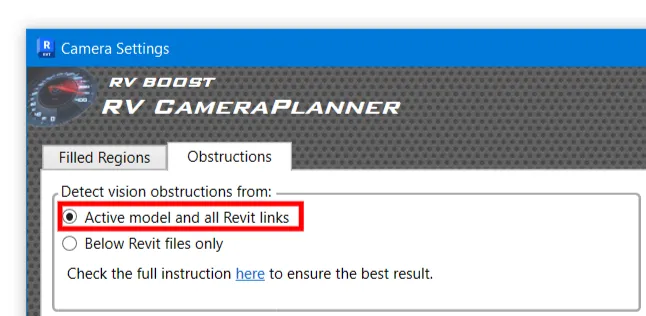
This is thorough but can be slow in a big model that contains lots of links. If you know in advance which files contains the obstructions, flip the switch to “Below Revit files only” and select only the relevant items. For example, there’s no point scanning the MEP links if you only selected Walls and Columns as vision obstruction.
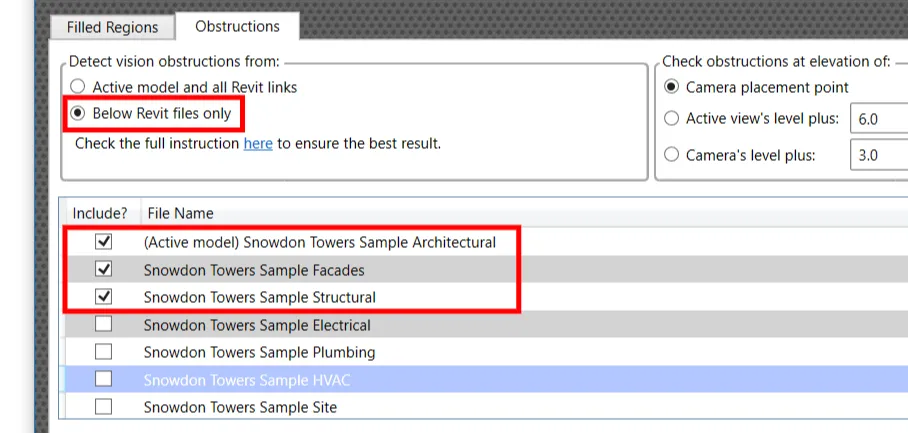
2 – Only select relevant categories
While RV CameraPlanner allows select any model category as camera obstruction, try to include only those relevant to the filled regions. If in double, click “Default Categories” to get the baseline to improve upon.
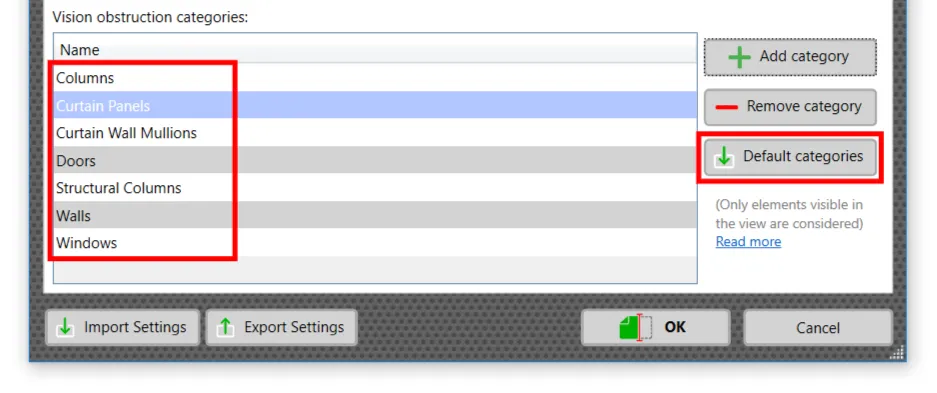
For more details, check out this article.
3 – Hide elements not relevant
RV CameraPlanner only process obstructions visible in the active view. If you have for example a super heavy imported object from Rhino for example, consider if you really need it when generating the filled regions. Hiding such complex objects beforehand can reduce processing time significantly.