Section Box by Room
In addition to clashes, RV ClashBox can also apply a section box by room to help you easily check rooms in busy Navisworks models. As a prerequisite, make sure your Navisworks model contains rooms from Revit. If in doubt, check out the export process we outlined here.
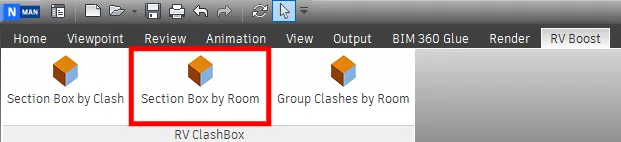
Once Revit rooms are in, run the command below to see them in Navisworks:
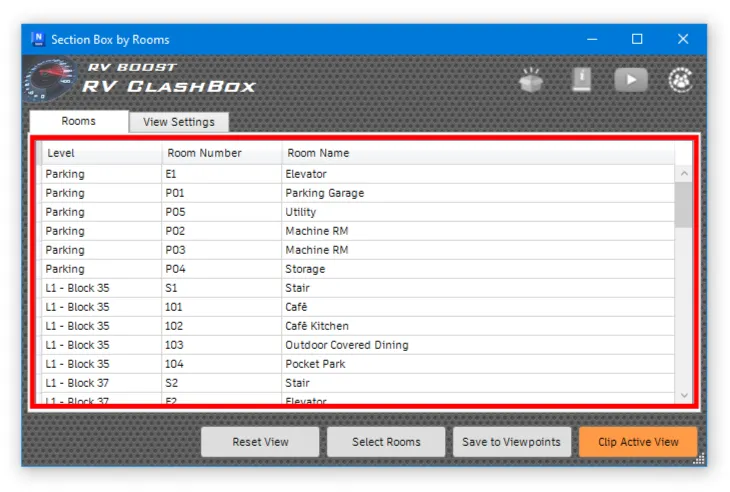
Here, you can find the required rooms by level, name or number:
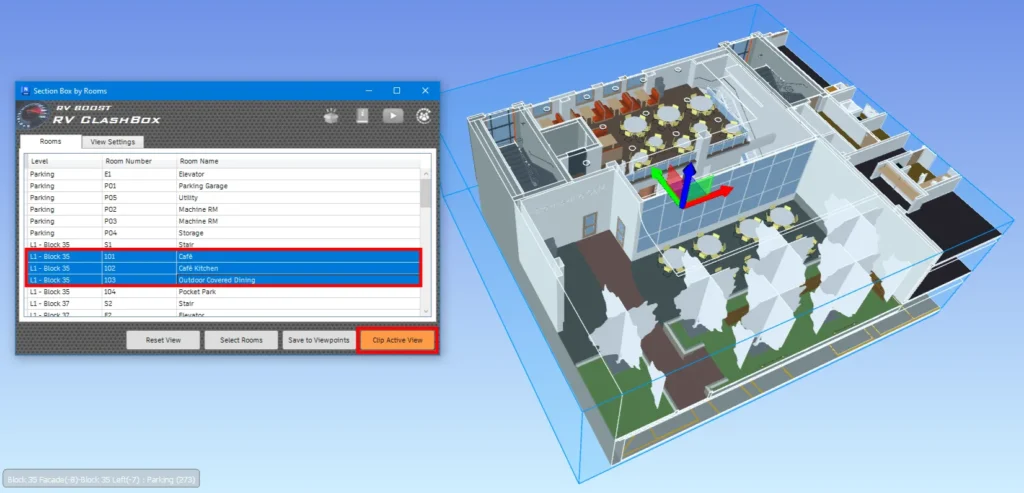
To inspect any room, select it in the table and click “Clip Active View”. This will apply a crop box to let you see the room without unnecessary distraction.
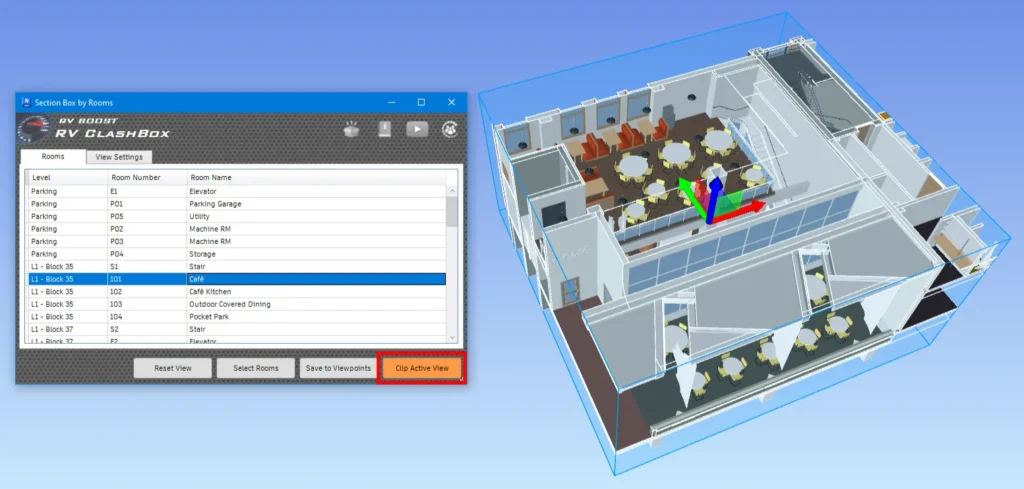
You can also select multiple rooms and then click the same button again. This will make the section box bigger to enclose all the rooms you have selected.
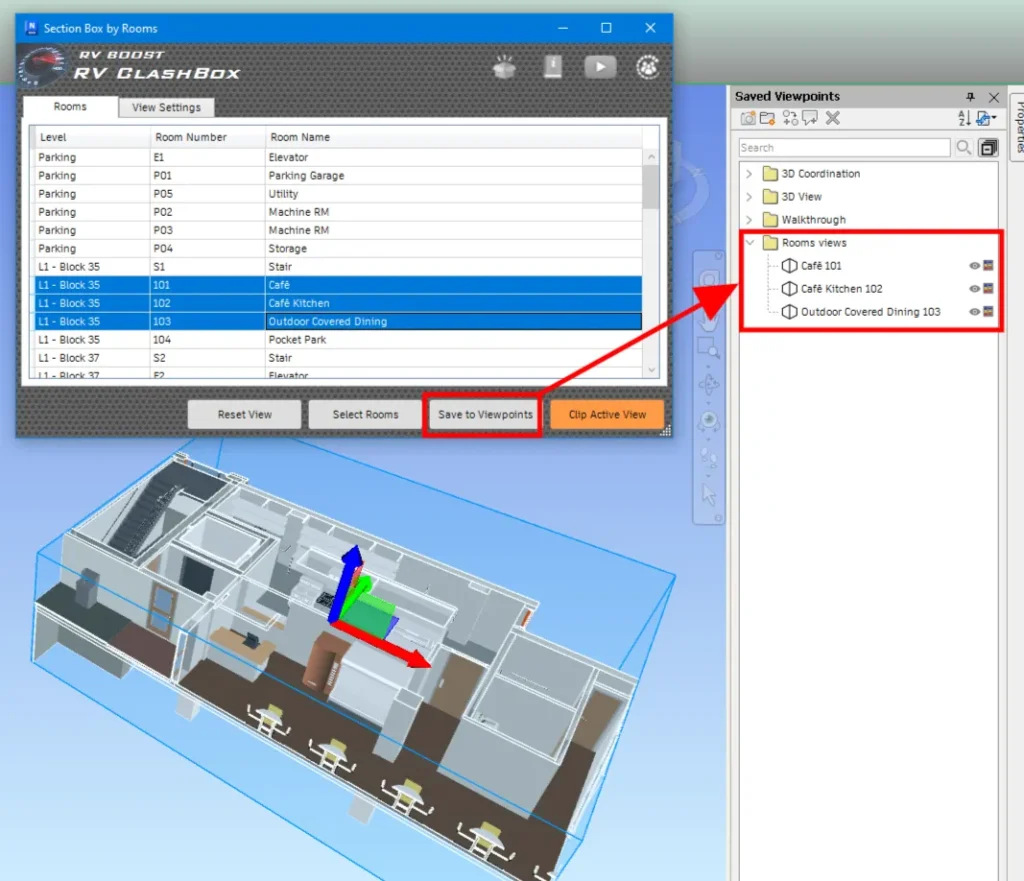
To save the view for later, click the “Save to Viewpoints” button. The app will create a new saved viewpoint for each selected room:
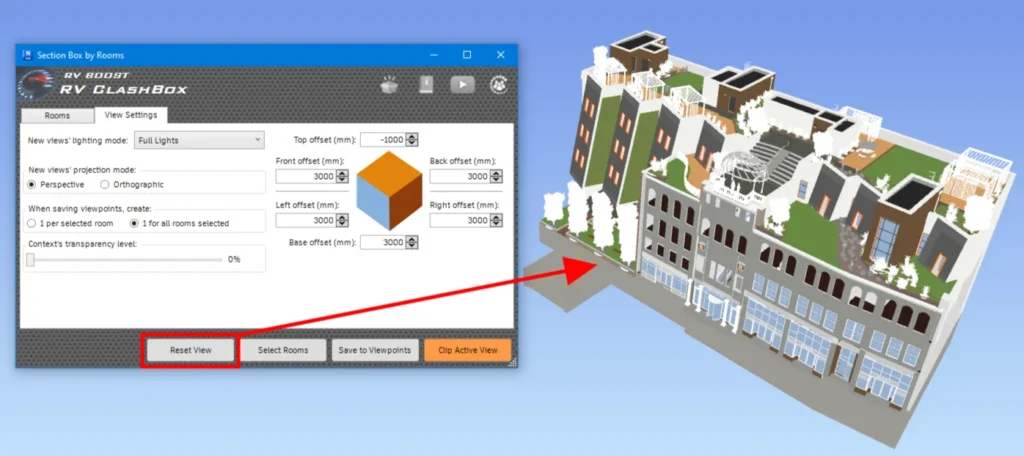
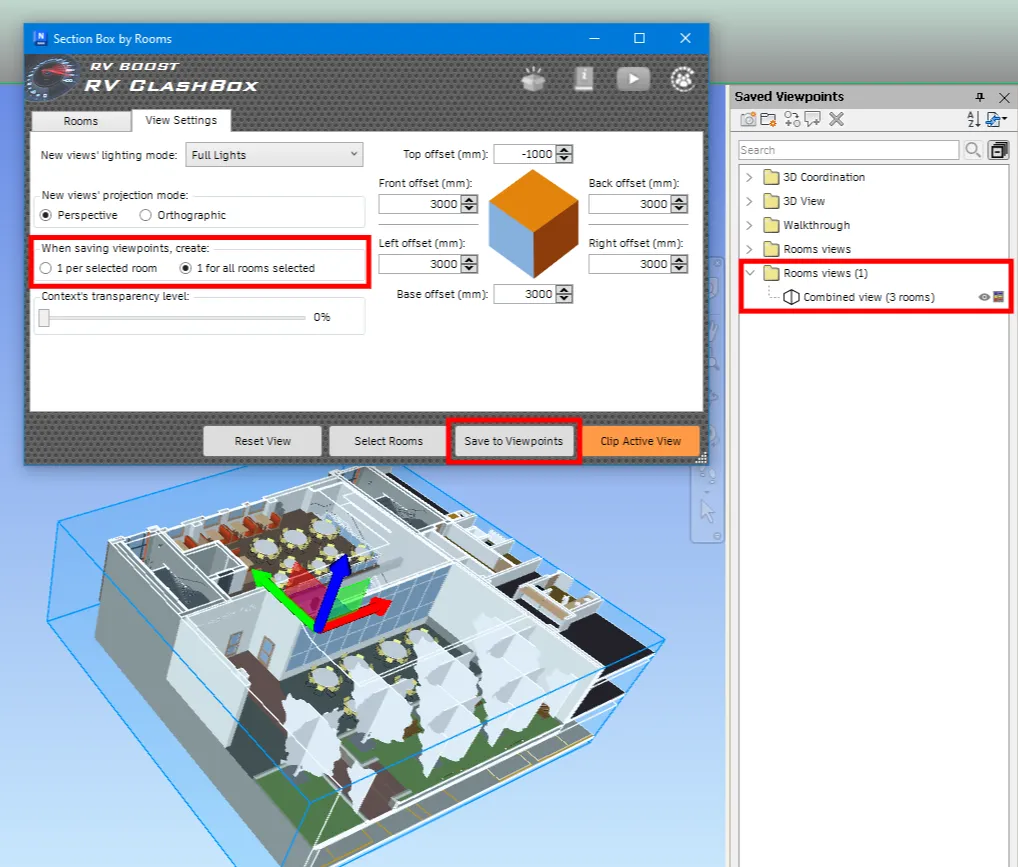
If you want to save only one single viewpoint for all the selected rooms, switch to the View Settings tab and select “1 view for all rooms selected”. Next, click “Save to Viewpoint” again to finish creating the view:
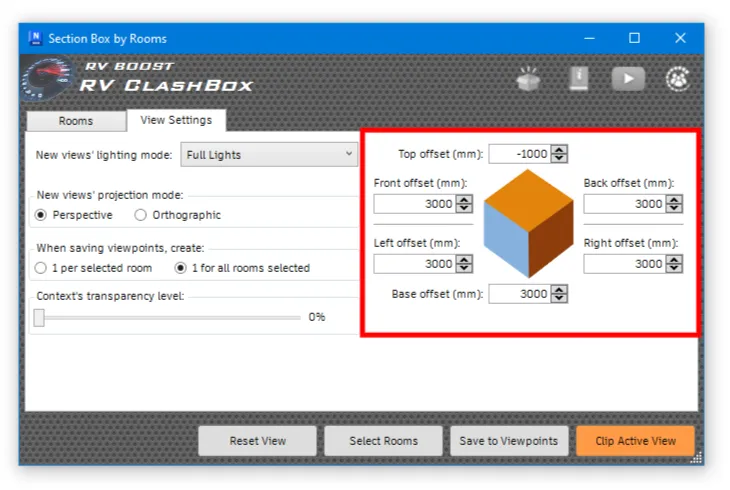
You will also find on this tab other settings to fully control how the view should be clipped and saved.
Once done with the review, click “Reset view” to return the active view to its unclipped state.