-
CAD Files Explorer
-
RV BatchTransmit
-
RV CameraPlanner
- Quick Start
- Speed up camera obstruction detection
- Configure camera obstructions
- Obstruction check plane
- Vary filled region settings by camera type
- Create multiple filled regions per camera
- Customize filled region appearance
- Filled region's origin offset
- Rotate filled region around camera
- Transfer settings between models
-
RV ClashBox
-
RV DeepClean
-
RV FamilyPurge
-
RV Live Coordinates
-
RV RoomLink
- Quick Start Guide
- Settings Checklist
- Use Custom Filters
- Guess Directions
- Use location projection on level
- Elements without rooms assigned
- Combine contained elements' parameters
- Count containted elements
- Distribute numeric room/space values
- Schedule objects above ceilings
- Schedule doors & windows by linked rooms
- Copy element data to rooms/spaces
- Extend Room/Spaces to Bounds
- Using a Network License
-
RV ZoneMonitor
-
Licensing
Save & Load Settings
One of the key requirements of coordinate management in Revit is consistency.
If your projects have multiple Revit files, it can be a challenge to make sure they all report element coordinates in the same way using the latest coordinate values. This is where RV Live Coordinates can help!
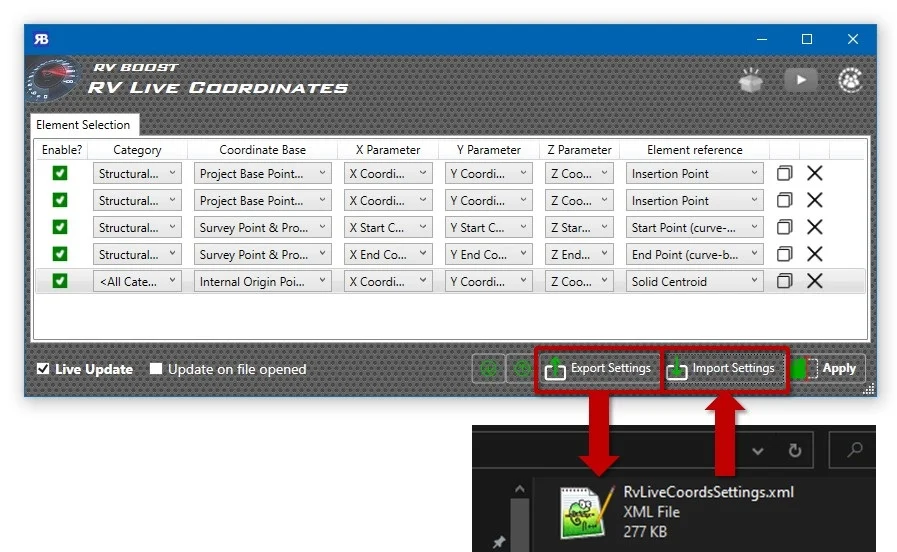
Simply set up the parameter links in one model, use the ‘Export Settings’ button, and save your configuration to a file. You can then import this settings file into any other Revit models, as long as they have the same set of parameters you want to use for coordinate reporting.
If you have Live Update turned on for the settings, even better. Now all your Revit files will update any required element’s coordinate parameters as soon as it is moved or created new.