-
CAD Files Explorer
-
RV BatchTransmit
-
RV CameraPlanner
- Quick Start
- Create 3D views from cameras
- Region parameters explained
- Configure camera obstructions
- Obstruction check plane
- Speed up camera obstruction detection
- Vary filled region settings by camera type
- Create multiple filled regions per camera
- Customize filled region appearance
- Filled region's origin offset
- Rotate filled region around camera
- Transfer settings between models
-
RV ClashBox
-
RV DeepClean
-
RV FamilyPurge
-
RV Live Coordinates
-
RV RoomLink
- Quick Start Guide
- Settings Checklist
- Use Custom Filters
- Guess Directions
- Use location projection on level
- Elements without rooms assigned
- Combine contained elements' parameters
- Count containted elements
- Distribute numeric room/space values
- Schedule objects above ceilings
- Schedule doors & windows by linked rooms
- Copy element data to rooms/spaces
- Extend Room/Spaces to Bounds
- Using a Network License
-
RV ZoneMonitor
-
Licensing
Safe Warnings & Errors to Dismiss
When exporting Revit files to IFC/NWC for sharing, you usually only need the 3D geometry and relevant object properties. At this point, the modelling process either has stopped for the day or is simply not your responsibility. Therefore, RV BatchTransmit allows you to automatically dismiss all Revit warnings and some Revit errors to prevent delays in the model export process:
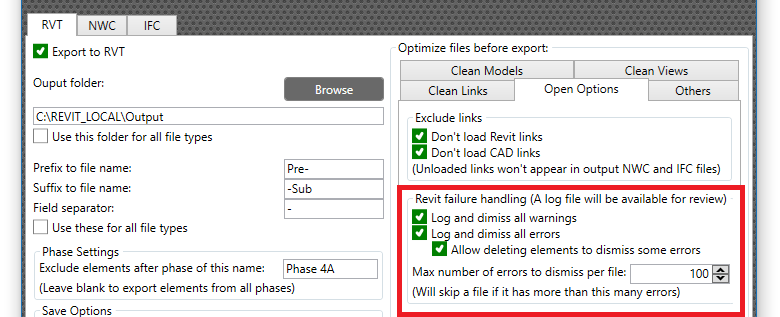
Thanks to this, you no longer need to stay at your desk to manually close messages like:
- “Highlighted elements are joined but do not intersect”
- “Highlighted room separation lines overlap”
- “Constraints are not satisfied”
- And many more.
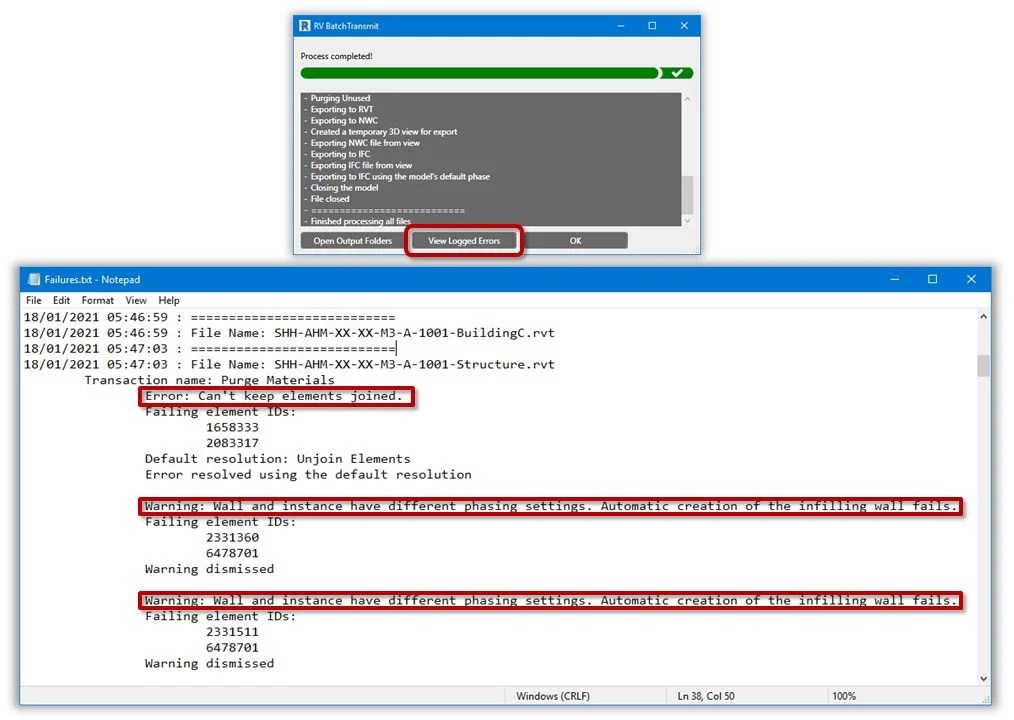
Of course, this doesn’t mean leaving the output model’s integrity to the mercy of the algorithm! After the export, RV BatchTransmit will generate a report outlining all warnings and errors it has silently dismissed. If something looks dangerous, simply open the original Revit file, fix the errors, and then re-export that model with RV BatchTransmit.