Region parameters explained
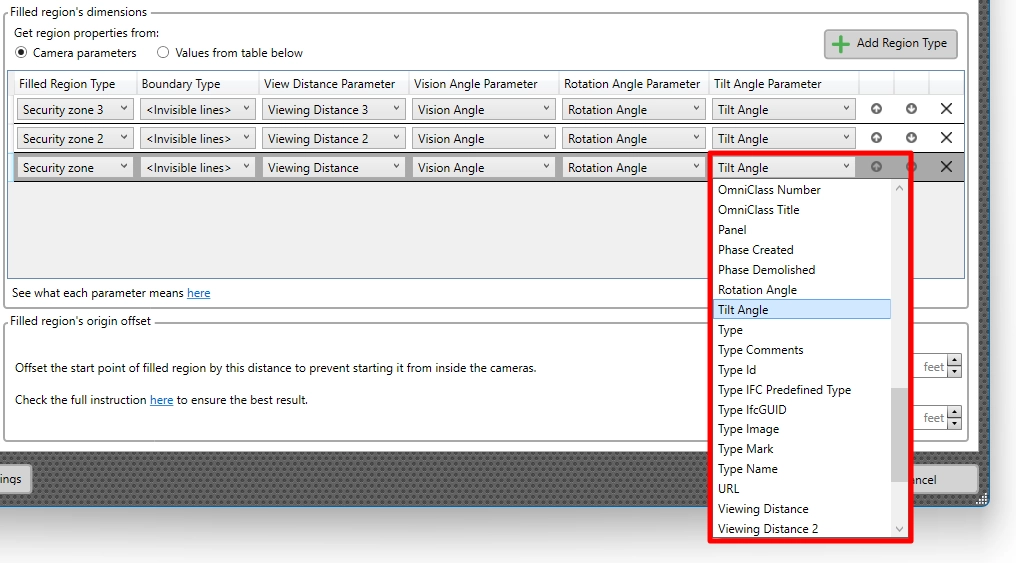
The number of customizable parameters in RV Camera Planner can be initial overwhelming! See below for a complete list of parameters and explanation of each.
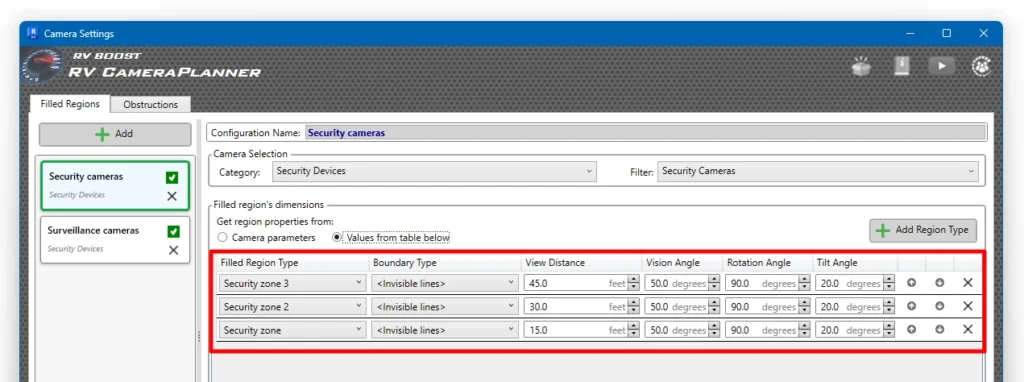
Filled Region Type
Specifies the Revit filled region type that will be used to create filled regions that represent the cameras’ view cone. Choose from available filled region types in your project to match your documentation standards.
Boundary Type
Controls the line style used for the outline/perimeter of the filled region. Select from available line styles (such as “<Invisible lines>” for boundary-less regions, or visible line types) to control how the view cone edges appear in your drawings.
View Distance
Defines how far the view cone extends from the camera location in Revit units. This represents the depth of the camera’s visible range and controls the size of the resulting filled region on the plan.
Vision Angle
Sets the horizontal field of view angle (in degrees) for the camera’s cone of vision. A larger angle creates a wider, fan-shaped region, while a smaller angle creates a narrower cone. Think of it like adjusting a camera lens from wide-angle to telephoto.
Rotation Angle
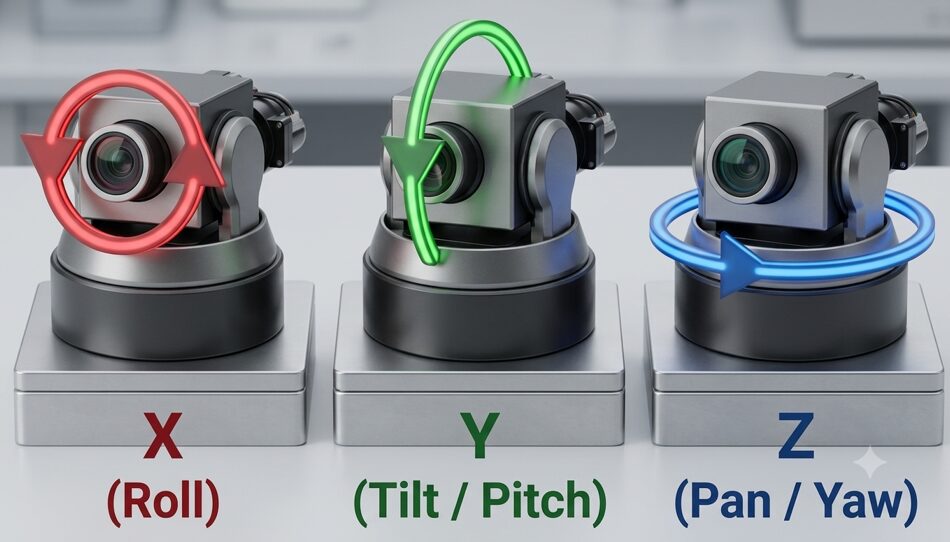
Rotates the camera’s view direction around the horizontal plane (yaw), allowing you to reorient the view cone if the camera’s built-in orientation needs adjustment. Positive angles rotate one direction; negative angles rotate the opposite direction. See our specific guide on this here.
Tilt Angle
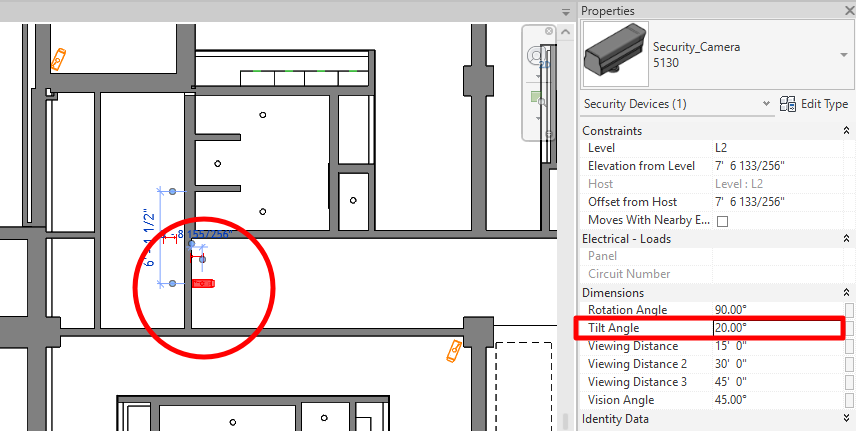
Pitches the camera’s viewing direction up or down from the horizontal plane. Positive angles tilt the camera downward (looking down). Negative angles tilt it upward. Useful for representing elevated or depressed camera positions.
X Offset Distance
Offsets the origin point of the view cone forward/backward along the camera’s forward direction by this distance. Use this to push the view cone’s start point forward if the camera family’s origin doesn’t align with where you want the region to start. See our specific guide on this here.
Y Offset Distance
Offsets the origin point of the view cone left/right perpendicular to the camera’s forward direction. Use this to shift the view cone sideways if the camera’s actual viewing position is offset from its family’s location point.
If you need additional info on any of these settings, please let us know at support@rv-boost.com!